

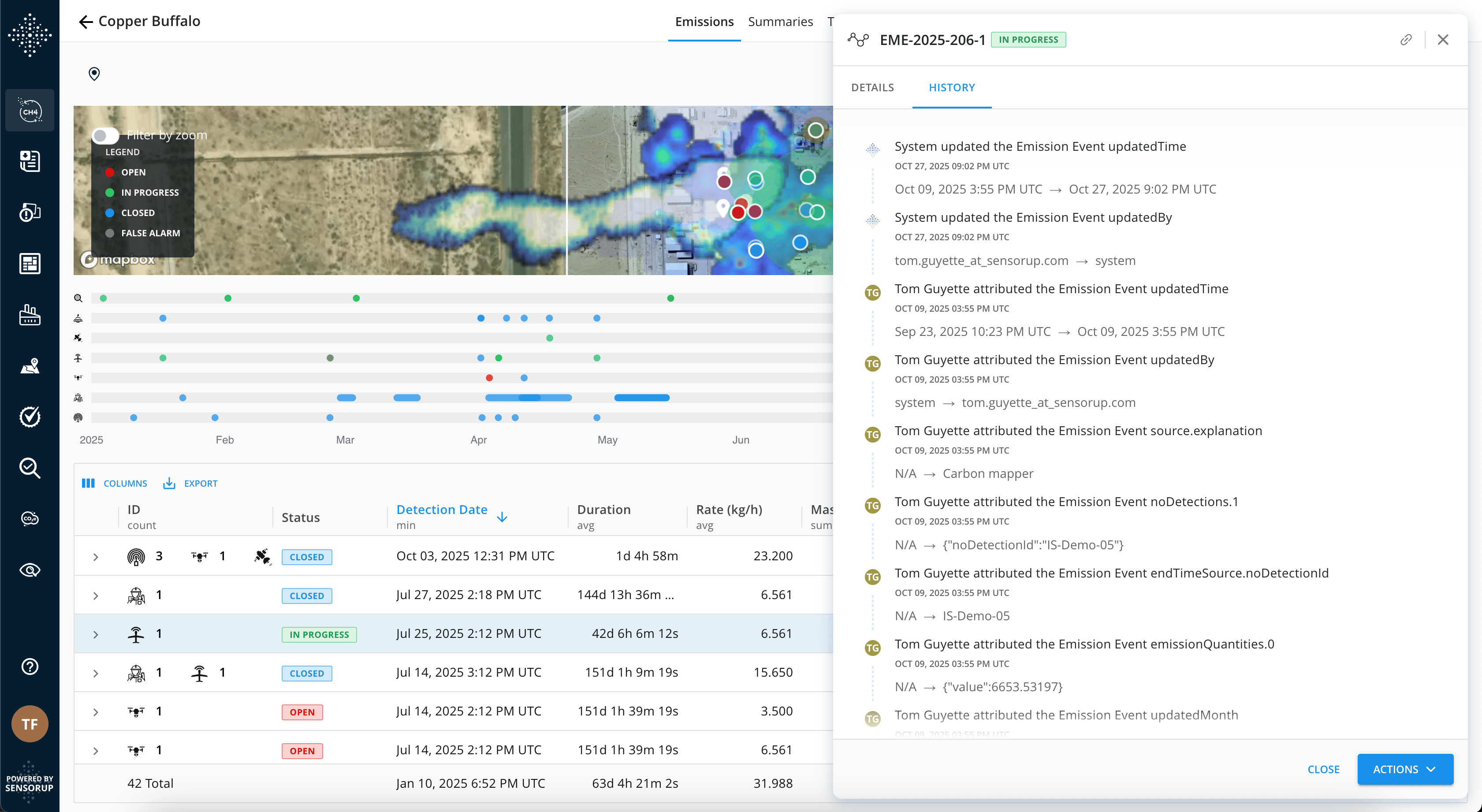
What is Audit History?
Audit History provides a complete, chronological record of every change made to your emission observations and events throughout their entire lifecycle. This powerful feature enables full data integrity, compliance reporting, and transparent tracking of all modifications—whether made by your team or automated systems.Complete Transparency
Every field change tracked
Compliance Ready
Full audit trail for reporting
User Attribution
Know who changed what and when
Understanding the Two History Tabs
The audit history feature tracks changes to two distinct types of records, each serving a different purpose in your emissions management workflow:Observation History
The Data Integration LogTracks changes to raw detection data, typically from third-party systems (like Continuous Monitoring Systems). This is mostly read-only and system-driven.Key Question: “Where did this data come from, and has the source changed it?”
Emission Event History
The User Action LogTracks all actions your team takes on emission events—attribution changes, status updates, closures, and investigation activities.Key Question: “What has our team done with this event?”
Visual Examples
The audit history interface provides different views to help you focus on the information you need: All Events History View the complete audit trail combining both observation and emission event changes in a unified timeline.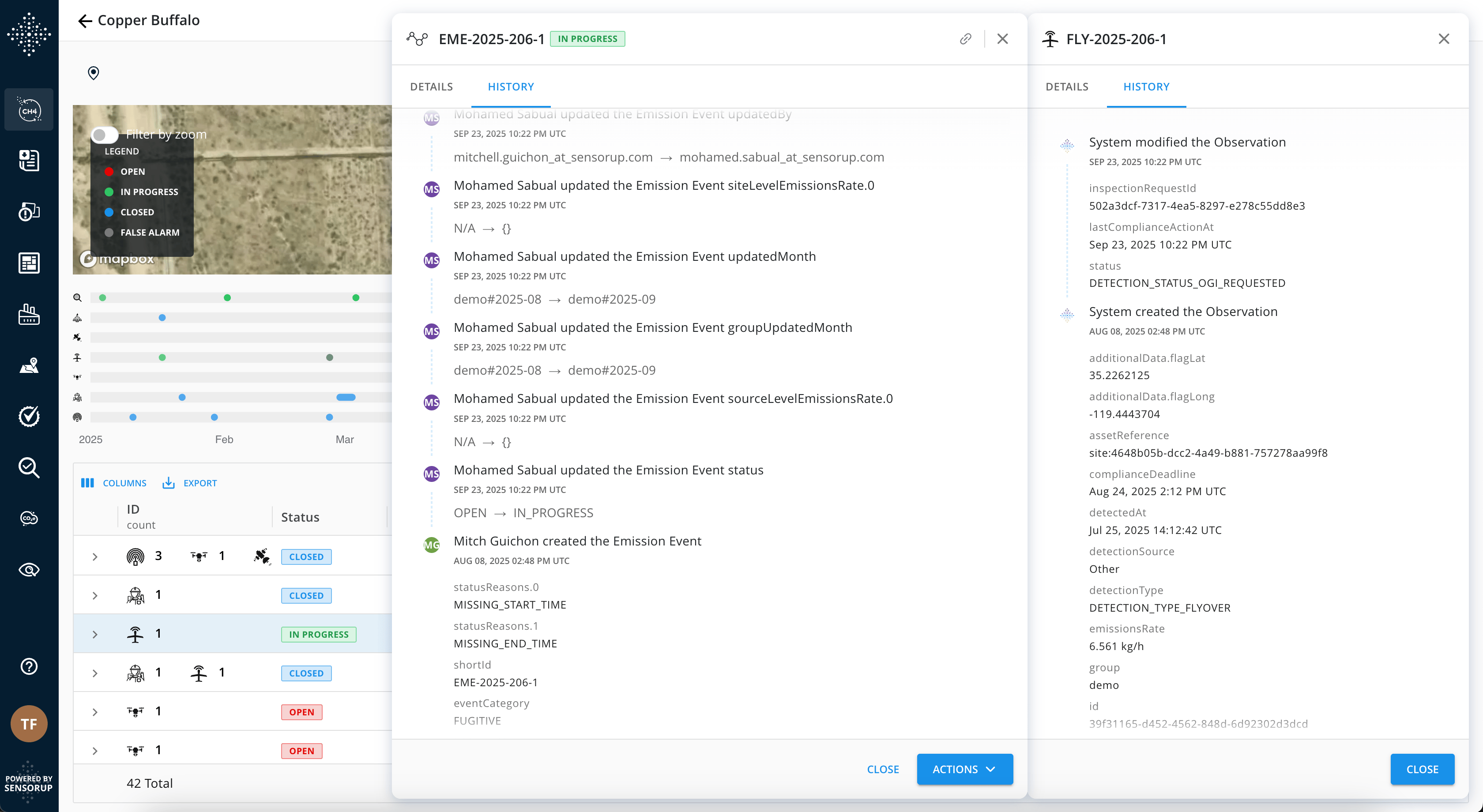
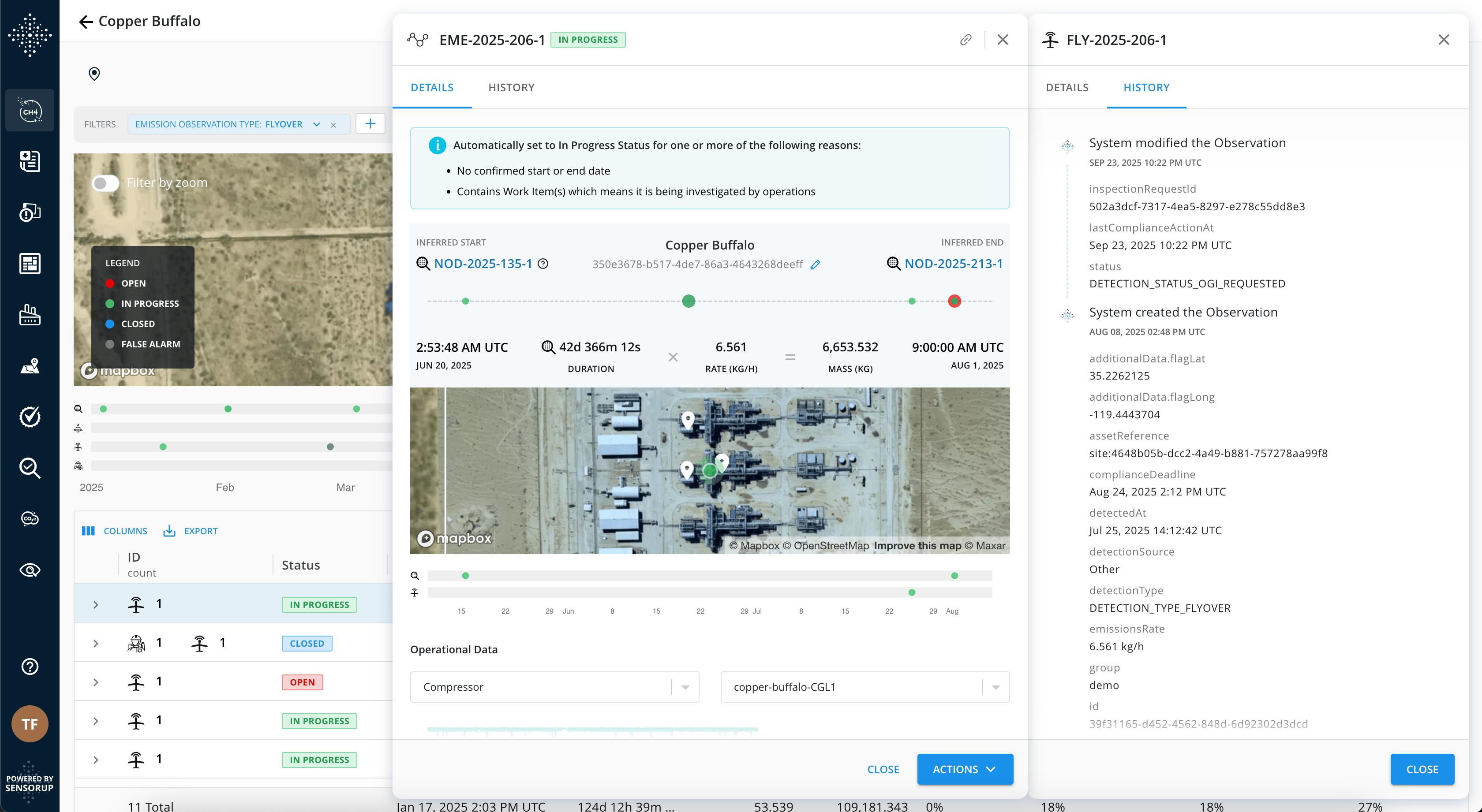
Why Use Audit History?
The Problem
Without audit history:Can’t verify data changes for compliance auditsCan’t track who made attribution or status changesLost context when investigating eventsManual timeline reconstruction is time-consuming
The Solution
With Audit History:Automatic, unchangeable audit trailComplete visibility into who changed what and whenRegulatory-ready compliance documentationInstant access to complete event lifecycle
Common Use Cases
Compliance Reporting Track all modifications to emission data for regulatory reporting. View the complete history of any observation or event to demonstrate data integrity and proper handling procedures to auditors, with automatic documentation of every change made by your team or integrated systems. Event Investigation Understand how an emission event evolved from detection to resolution. See which team members attributed the event, requested inspections, and ultimately closed it out, providing full context for every decision and action taken throughout the event lifecycle. Data Source Verification Identify patterns in how continuous monitoring systems refine their data over time. Analyze how emission rates or attributions change as more information becomes available, helping you understand data quality and system behavior. Attribution Tracking When event attribution changes, review the complete history to see who made the change, when it occurred, and what the previous attribution was. This helps you understand the investigation process and verify that attribution decisions were made correctly. Work Order Prevention Before dispatching field teams, check the audit history to see if an inspection has already been requested or if work orders have been created. This prevents duplicate work and helps you coordinate field operations more efficiently.Getting Started
Ready to use Audit History? The feature is automatically enabled for all emission observations and events. Follow these steps to access the complete history.
1
Navigate to an Emission Event or Observation
Open any emission event or observation detail page from your emissions dashboard.
2
Locate the History Tab
Look for the “History” tab in the detail view. This tab appears alongside other information tabs.
3
Review the Audit Trail
The history displays in chronological order (newest first) showing:
- What changed: Field name and values (before/after)
- When: Exact timestamp of the change
- Who: User who made the change (or “System” for automated updates)
- Change type: Creation, update, status change, attribution, etc.
Understanding Observation History
Observations are raw detection data, typically sent from third-party systems like Continuous Monitoring Systems (CMS) or occasionally created manually.What You’ll See
System-Driven Updates
System-Driven Updates
Most observations are not editable by users. Their history shows changes made by the “System” as external data sources (like CMS platforms) refine their data. You may see updates every 15-30 minutes for active monitoring systems as they:
- Refine emission rate calculations
- Update detection confidence levels
- Adjust attribution as more data becomes available
- Add additional metadata from processing pipelines
Field Changes Tracked
Field Changes Tracked
The system tracks changes to all observation fields including:
- Emission Rate: Value and unit (kg/hr, etc.)
- Detection Time: Start and end times
- Attribution: Asset and equipment references
- Status: Detection status changes
- Additional Data: Confidence intervals, processing metadata
- Media: Links to images or videos
Read-Only Protection
Read-Only Protection
Observations integrated from external systems are typically read-only to protect data integrity. The history log helps you understand:
- Why an observation appears “locked”
- That the data source controls the record
- How the source system has refined the data over time
Key Use Cases for Observation History
Compliance Verification
When: Auditing a compliance reportGoal: Verify the source of detection data and prove its integrityAction: Review the complete, unchangeable audit trail showing system-generated updates
Data Investigation
When: CMS data looks different todayGoal: Understand what changed and when the system updated itAction: Find the specific field changes (e.g., emission rate) and their timestamps
Integration Troubleshooting
When: Questioning data integrationGoal: Validate that the integration is working correctlyAction: Confirm the observation was created by “system” and review original data
Source Refinement Analysis
When: Monitoring active CMS detectionsGoal: See if emission rates or attribution are still being updated or have stabilizedAction: Check recent history entries for continued system updates
Understanding Emission Event History
Emission events summarize one or more observations into a single, actionable incident that your team manages, investigates, and resolves.What You’ll See
Detailed Change Logging
Detailed Change Logging
The event history is highly detailed. A single user action (like “Close Event”) may result in multiple fields changing at once:
status→ “CLOSED”closedBy→ User IDclosureDate→ TimestampstatusReasons→ Closure justification
User Actions Tracked
User Actions Tracked
All team actions are logged including:
- Attribution changes: Moving events between assets or equipment
- Status updates: Opening, closing, false alarming events
- Observation grouping: Adding or removing observations
- Follow-up requests: Requesting OGI inspections or repairs
- Field updates: Changing dates, rates, or other properties
- Notes and documentation: Adding investigation details
Complete Event Lifecycle
Complete Event Lifecycle
Track the full journey from detection to resolution:
- Creation: When the event was first detected (usually by system)
- Investigation: Attribution refinements, observation additions
- Action: Work orders, inspection requests
- Resolution: Closure, false alarm designation, or ongoing monitoring
Key Use Cases for Emission Event History
Active Event Management
When: Reviewing an active emissionGoal: Get a complete picture of how the event has been handledAction: View the log of every action from creation to present
Attribution Tracking
When: Event attribution has changedGoal: Understand who changed it and when (e.g., from ‘Facility A’ to ‘Pipeline B’)Action: Find the attribution change in history with user and timestamp
Closure Verification
When: Auditing a closed eventGoal: Verify closure timestamp and user for complianceAction: Review the status change entry showing who marked it closed and when
Work Order Prevention
When: Need to dispatch a field teamGoal: See if an inspection has already been requestedAction: Check history for work item creation to avoid duplicate work
FAQ / Troubleshooting
Why does the history show 'System' as the user?
Why does the history show 'System' as the user?
The “System” user appears when changes are made automatically by integrated data sources (like Continuous Monitoring Systems) or internal automated processes. This ensures you can distinguish between human actions and automated system updates.
Why can't I edit some fields shown in the history?
Why can't I edit some fields shown in the history?
Observations from integrated sources are typically read-only to preserve data integrity. The history shows you changes made by the source system. If you need to modify data, you’ll typically work with the emission event rather than the underlying observation.
Why do I see multiple rows for a single action?
Why do I see multiple rows for a single action?
When you perform an action like “Close Event,” multiple fields may change simultaneously (status, closed_by, closure_date). The history displays one row per field change for complete granularity. This helps auditors see exactly what data changed.
Can I export the audit history?
Can I export the audit history?
Yes, you can export the complete audit history for compliance reporting. Contact your system administrator for export options, or use the GraphQL API to programmatically retrieve audit data.
How far back does the history go?
How far back does the history go?
The audit history captures all changes from the moment the feature was enabled in your environment. For observations and events created before the feature launch, history tracking begins from that enablement date forward.
What if I need to prove data integrity for an audit?
What if I need to prove data integrity for an audit?
The audit history is stored in an immutable event store, meaning changes cannot be deleted or modified after they’re recorded. This provides legally defensible proof of data integrity for regulatory audits.
Best Practices
Do This
Review history regularly during investigations to understand the full context of an emission eventUse history for training to help new team members understand proper workflows and proceduresReference specific history entries when communicating with regulators or auditorsCheck observation history before questioning data quality—the source may have refined it
Not That
Don’t assume one history row = one action—single actions may change multiple fieldsDon’t try to edit history—it’s intentionally immutable for complianceDon’t ignore system updates—they provide valuable insight into data refinementDon’t skip history review—it contains critical context for decision-making
Related Features
Emission Event Management
Learn how to manage emission events from detection to resolution
Attribution
Understand how to attribute emissions to specific assets and equipment
Event Statuses
Learn about different emission event statuses and lifecycle stages
Follow-up Requests
Create and track inspection requests and work orders