

Time Required: 5–7 minutes
What You’ll Learn:
What You’ll Learn:
- How to create and assign an Issue
- How to track tasks, comments, and data collection
- How to collaborate between field operations and the office in real-time
Your First Steps
1
Create a New Issue
Click the New Issue button in the top left corner of Mission Control.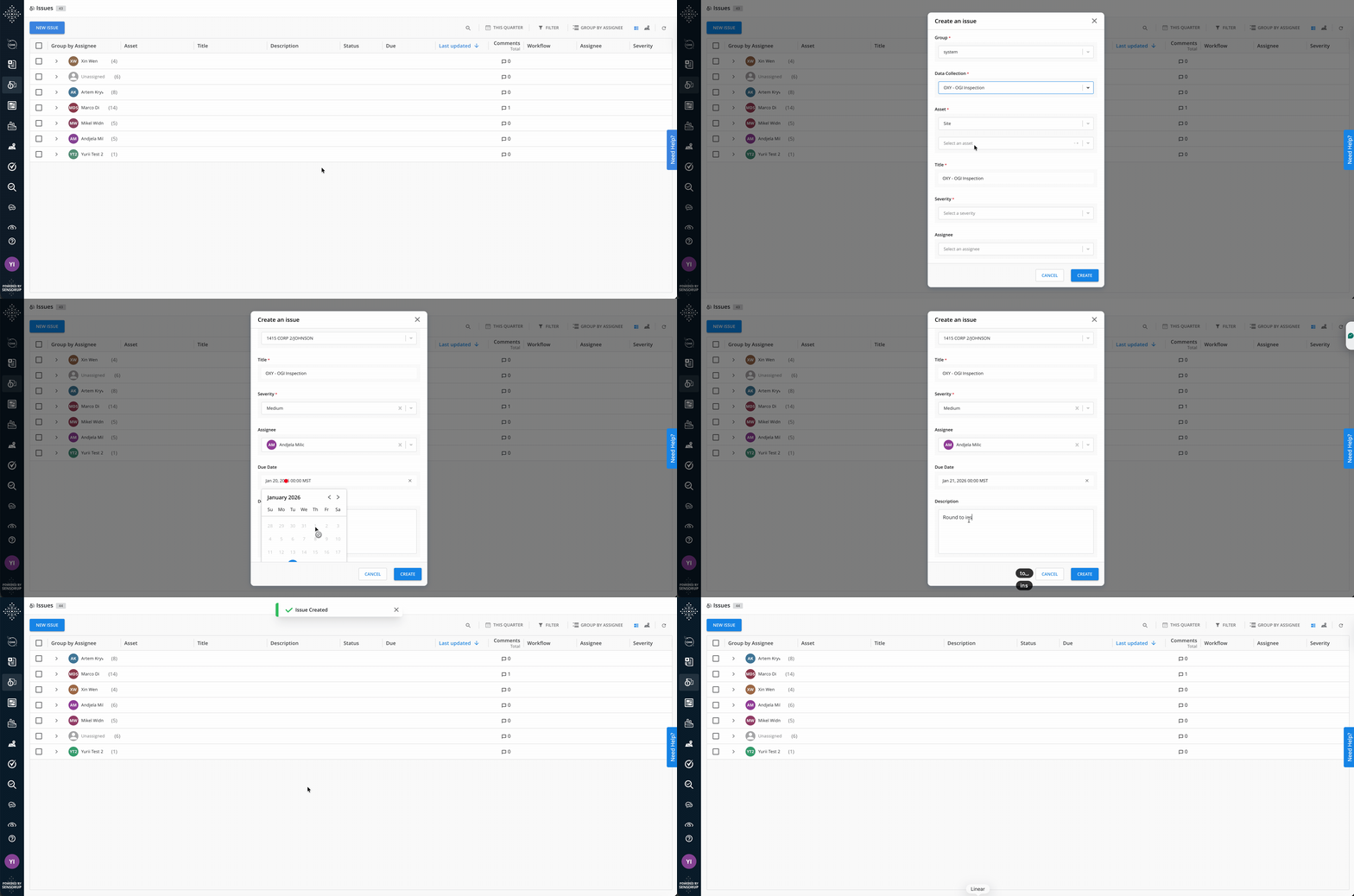
- Set the Asset the Issue relates to
- Provide a meaningful title and description (dynamic properties can be used)
- Choose a due date to enforce timely completion
- Select a severity level (Critical, High, Medium, Low) to prioritize
- Assign the Issue to a technician or team
2
Review and Manage Issue Details
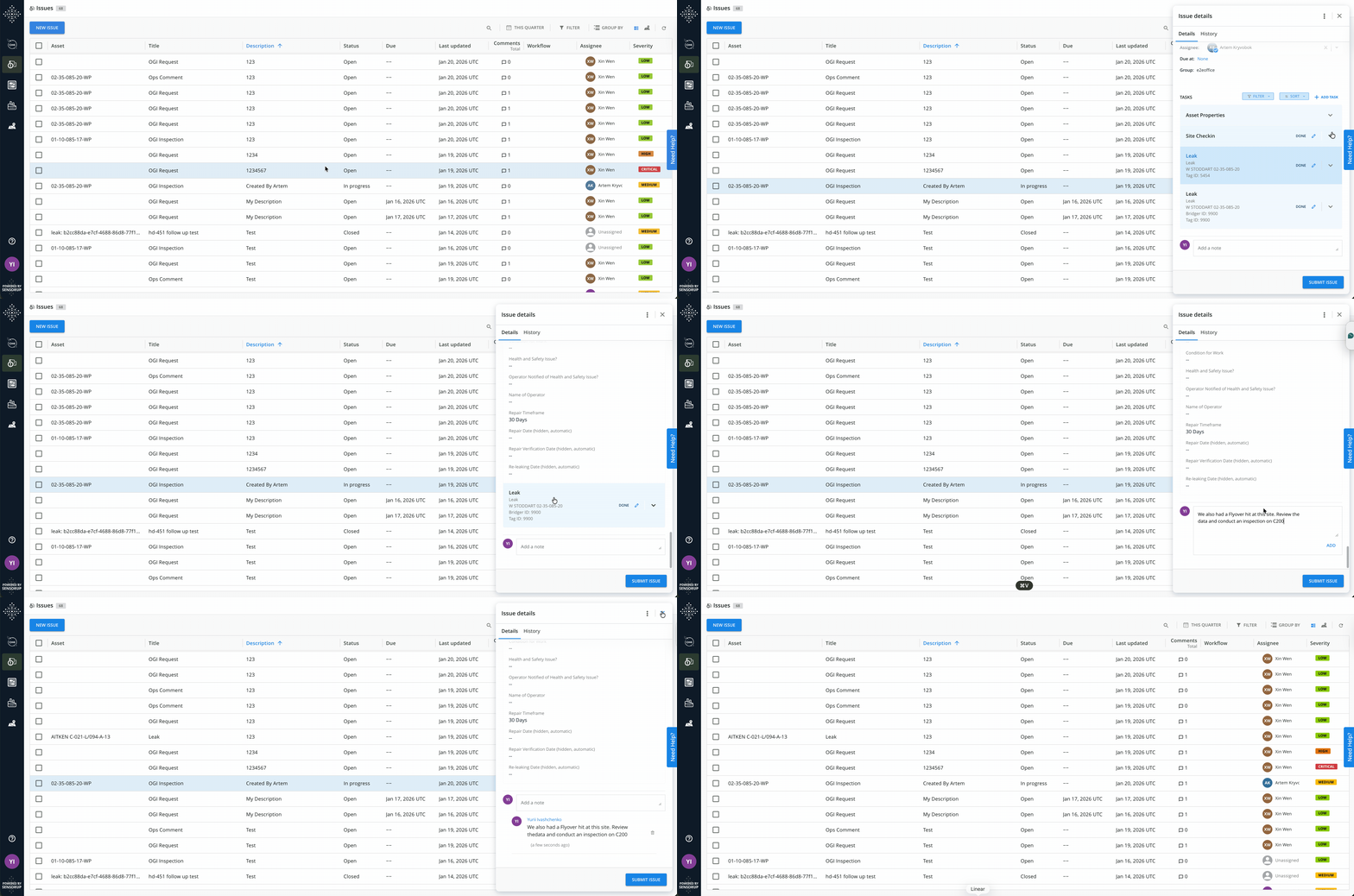
Clicking on any Issue in the list opens its detailed view:
- See the linked Asset and its metadata
- View and manage instructions, tasks, and results
- Use the search and filter tools to refine your view—filters are saved per user
- Monitor modified data streamed from field operations and office work in near real-time
-
Add comments to coordinate with others
3
Field Technician Responds via Outpost
Assigned Issues appear in the Outpost mobile app.
Technicians will:
Technicians will:
- Complete a Site Check-In form
- Record results using mobile forms (including photos, geotags, severity, H₂S, etc.)
- Update the status to In Progress and complete tasks
- Add comments if needed for field-to-office communication
4
Track, Review, and Close the Issue
As the technician works, the Issue progresses:
- Open → In Progress → Done
- Field data is streamed live (or synced when back online)
- Office staff can review, validate, or edit data
- Once everything is confirmed, mark the Issue as Closed
You Did It!
✅ Created and assigned your first Issue
✅ Tracked live progress and validated data from field operations and office work
✅ Closed the Issue with full traceability
✅ Created and assigned your first Issue
✅ Tracked live progress and validated data from field operations and office work
✅ Closed the Issue with full traceability
Key Concepts Recap
✅ Issue (Ticket): Structured task related to an Asset
✅ Lifecycle: Open → In Progress → Done/Closed
✅ Asset Link: Every Issue is tied to a site or equipment
✅ Collaboration: Shared comments, data, and attachments across devices
✅ Visibility: Accessible from web and mobile (SensorUp + Outpost)
✅ Lifecycle: Open → In Progress → Done/Closed
✅ Asset Link: Every Issue is tied to a site or equipment
✅ Collaboration: Shared comments, data, and attachments across devices
✅ Visibility: Accessible from web and mobile (SensorUp + Outpost)
Additional Functionality
Task and Procedure Tracking
Each Issue may include multiple tasks or results related to one site visit:- Each task has a lifecycle: Open → In Progress → Done
- Task status and details can be viewed and edited by specialists in Mission Control
- All data collected is editable (except raw observation context)
Comments and Communication
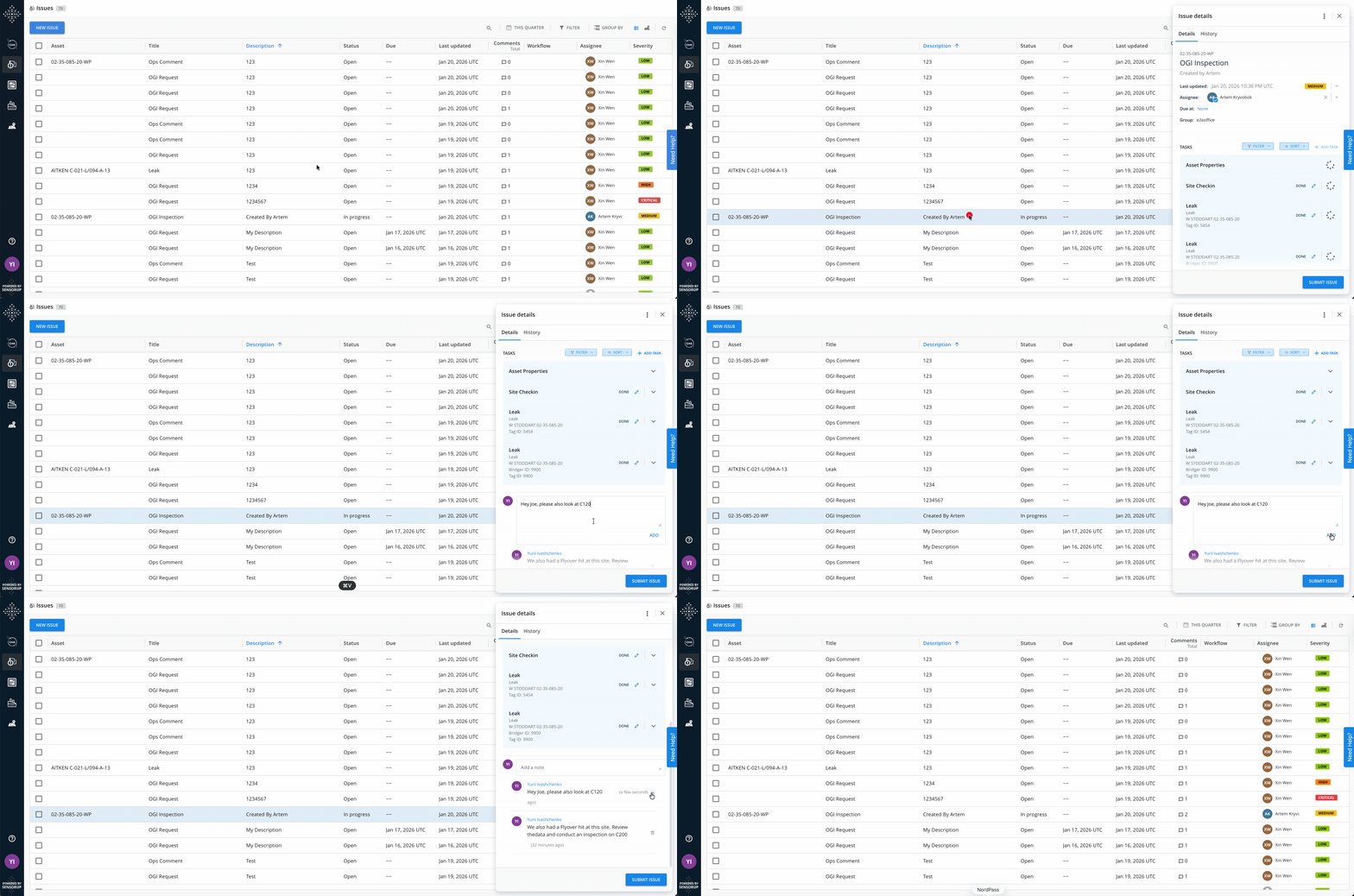
Use the comments section to:- Capture unstructured insights from field operations and office work
- Communicate in real-time across teams
- All comments are instantly visible to users with access to that Issue
Reopening and Reassignment
Closed Issues can be reopened by administrators in Mission Control:- Reopened Issues are automatically re-assigned to the original user
- The Issue appears again in their mobile app for updates or corrections
Deleting Issues
Users with delete permissions can remove Issues that are no longer needed. To delete an Issue:- Open the Issue detail view
- Click the actions menu (three dots icon) in the header
- Select Delete
- Review the confirmation dialog—it will display the Issue name and confirm that assets and statuses will not be affected
- Click Delete to confirm
If you are deleting an Issue created by another user, the confirmation dialog will show the creator’s name and their group (if different from yours).
The actions menu is only visible if you have manage permissions. If the delete option is disabled, hover over it to see the reason.
Bulk Deleting Issues
You can select and delete multiple Issues at once from either the Issues list view or the Issues Map view. To bulk delete Issues:- Select the Issues you want to delete by clicking the checkboxes next to each Issue in the list view, or by selecting markers in the Map view
- A floating action bar appears at the bottom of the screen, showing the number of selected Issues
- Click Delete in the floating action bar
- Review the confirmation modal, which displays the total count of Issues to be deleted
- Click Delete to confirm and start the bulk deletion job
The bulk delete option is only available to users with delete permissions. Viewers will not see the selection controls or the floating action bar.
If some of the selected Issues cannot be deleted, a modal will explain the reasons why those Issues are excluded from the bulk operation.
Sub-tasks belonging to deleted Issues are not automatically removed. You will need to manage sub-tasks separately if needed.
Permissions
Access to Issues is controlled by user roles. Understanding your role helps you know what actions you can take:Need more details? See User Roles and Permissions for complete information about role-based access control across all SensorUp features.
What’s Next?
Now that you’ve created and completed your first Issue, you’re ready to use advanced tools like triggered inspections, alarms, and multi-task workflows.Creating OGI Inspection Issues
Learn how to trigger and manage optical gas imaging inspections.
Tasks
Learn how to create and manage tasks within issues.
Forms
Design form templates for tasks.
Results
Review data from completed tasks.
Outpost Mobile
Complete tasks on mobile devices.