> ## Documentation Index
> Fetch the complete documentation index at: https://docs.sensorup.com/llms.txt
> Use this file to discover all available pages before exploring further.
# Creating and Accepting an Invite in the SensorUp Platform
> Learn how to invite a new user to SensorUp and how invitees can securely create their accounts.
## Welcome!
SensorUp makes it simple and secure to add new users to your workspace. Whether you're managing field technicians, analysts, or admins, this guide will walk you through inviting a new user—and show them how to accept the invite and log in for the first time.
**Time Required:** 5 minutes\
**What You'll Learn:**
* How to send a new user invitation
* How to accept and activate your SensorUp account
* How to enable secure 2-step verification
**Common Pitfalls:**
* Skipping the phone number field (use 999-999-9999 if needed)
* Entering the wrong email—invites only work for the entered email address
## Role-Based Access Control
When creating a new user, you'll assign them one of the following roles:
* **Viewer:** Can view all data but cannot take any actions
* **Editor:** Can view all data and take limited actions (create/update emissions, issues, manage own assets and maps)
* **Administrator:** Can manage content across most sections (full CRUD on assets, forms, maps, and user management within their group)
* **Super Admin:** Full access across all features (internal SensorUp staff only)
[Learn more about roles and permissions →](/use-sensorup/user-management/User-roles-permissions)
## Your First Steps
1. Click your **Avatar** icon in the bottom-left corner of the sidebar
2. Navigate to **User Management**
3. Click **Create User** at the top of the page
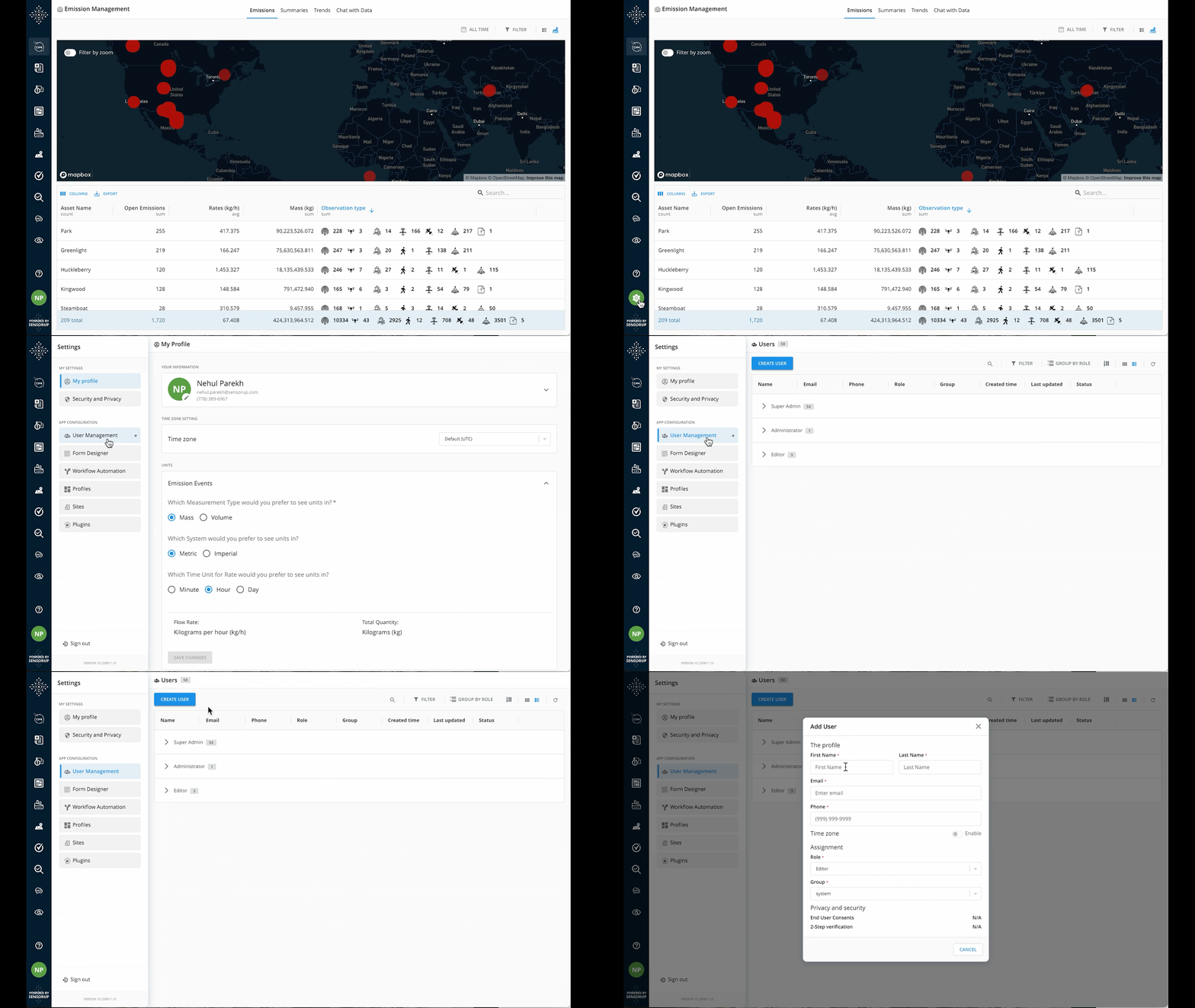 4. In the Add User form:
* Enter **First Name**, **Last Name**, **Email**, and **Phone Number**\
(Use `999-999-9999` if you don't have the phone number)
* Optionally set **Timezone** (defaults to browser-based location)
* Choose a **Role** (Viewer, Editor, Administrator, or Super Admin)
* Choose a **Group** (if available)
5. Click **Invite User**\
You'll see a confirmation banner at the top once the invite is sent.
4. In the Add User form:
* Enter **First Name**, **Last Name**, **Email**, and **Phone Number**\
(Use `999-999-9999` if you don't have the phone number)
* Optionally set **Timezone** (defaults to browser-based location)
* Choose a **Role** (Viewer, Editor, Administrator, or Super Admin)
* Choose a **Group** (if available)
5. Click **Invite User**\
You'll see a confirmation banner at the top once the invite is sent.
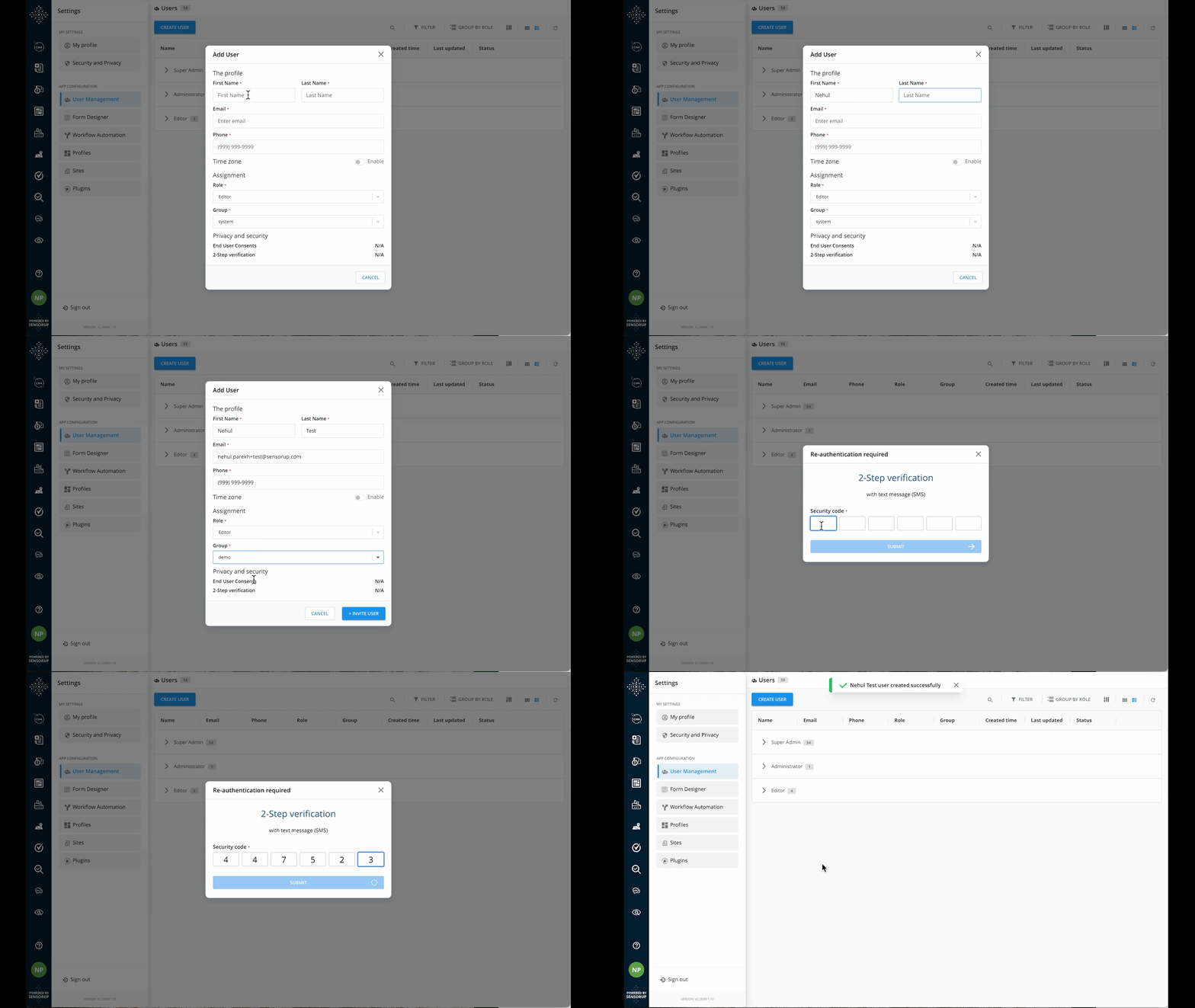 The invitee will receive an email with:
* A temporary **invite code** (copy it)
* A **Create Your Account** button
Invitee should:
1. Click **Create Your Account**
2. Enter their **email address**
3. Paste the **temporary code**
4. Click **Sign In**
5. Create a secure password
* Use a **memorable phrase** of 15+ characters (no need for symbols or digits)
* Use the eye icon to verify your password
* Click **Submit**
The invitee will receive an email with:
* A temporary **invite code** (copy it)
* A **Create Your Account** button
Invitee should:
1. Click **Create Your Account**
2. Enter their **email address**
3. Paste the **temporary code**
4. Click **Sign In**
5. Create a secure password
* Use a **memorable phrase** of 15+ characters (no need for symbols or digits)
* Use the eye icon to verify your password
* Click **Submit**
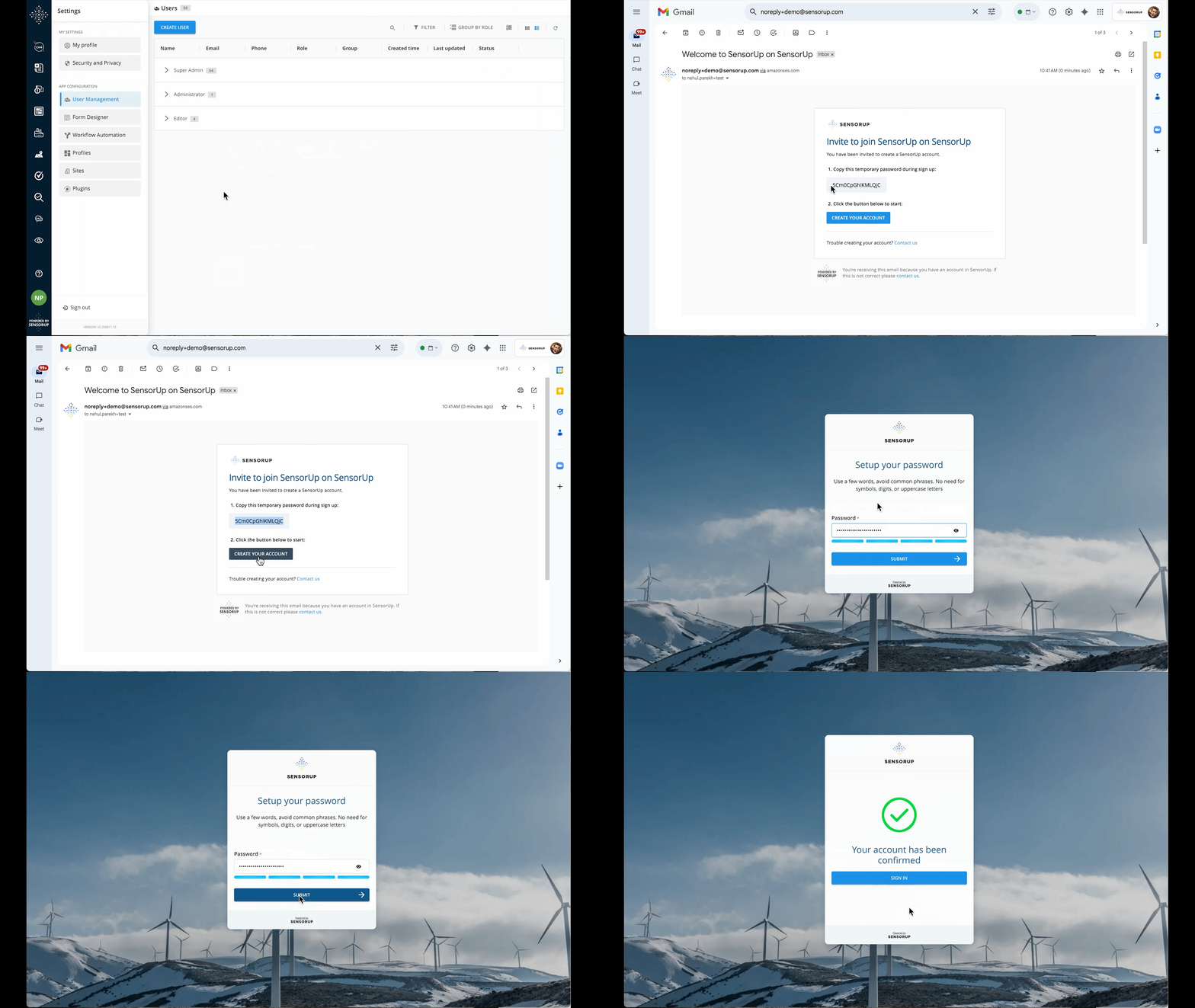 For added security, invitees must set up **2-step verification**:
1. Download a **Security App** (Authenticator) on your phone:
* Google Authenticator, Authy, Duo Mobile, LastPass Authenticator, Microsoft Authenticator
2. Open the app and scan the **QR Code** shown
3. Or switch to **manual entry** and type in the provided key
4. The app will generate a **6-digit code**
5. Enter the code into SensorUp and click **Continue**
✅ You'll now see a success screen confirming your account is ready. Click **Sign In** to enter the platform.
For added security, invitees must set up **2-step verification**:
1. Download a **Security App** (Authenticator) on your phone:
* Google Authenticator, Authy, Duo Mobile, LastPass Authenticator, Microsoft Authenticator
2. Open the app and scan the **QR Code** shown
3. Or switch to **manual entry** and type in the provided key
4. The app will generate a **6-digit code**
5. Enter the code into SensorUp and click **Continue**
✅ You'll now see a success screen confirming your account is ready. Click **Sign In** to enter the platform.
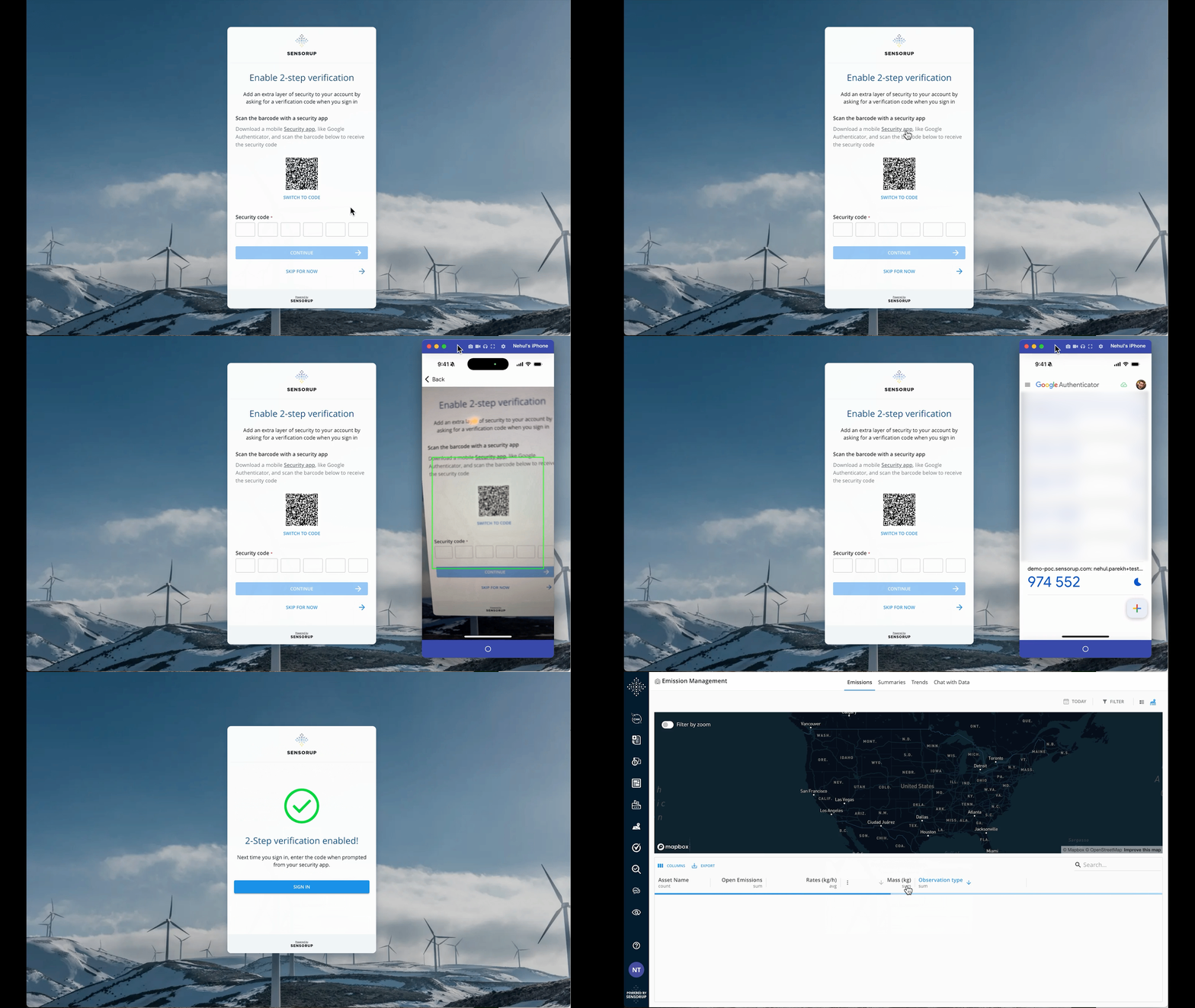 Your new account is now ready to use. You can access your workspace based on your role and group.
**You Did It!**\
✅ Sent or accepted your first user invite\
✅ Created a secure account\
✅ Enabled two-step verification
## What's a Security App?
A **Security App** (also called an Authenticator) generates time-based one-time passwords that refresh every 30 seconds.\
Even if someone gets your code, it won't work after 30 seconds.
Recommended apps:
* Google Authenticator
* Authy
* Duo Mobile
* LastPass Authenticator
* Microsoft Authenticator
Every time you sign in, you'll be asked to enter the current code shown in your app to complete login securely.
## What's Next?
You're now part of the SensorUp platform. Start exploring how to manage your profile or invite more teammates.
Learn what each user role means and what access they have.
Complete your account setup and configure your profile settings.
Your new account is now ready to use. You can access your workspace based on your role and group.
**You Did It!**\
✅ Sent or accepted your first user invite\
✅ Created a secure account\
✅ Enabled two-step verification
## What's a Security App?
A **Security App** (also called an Authenticator) generates time-based one-time passwords that refresh every 30 seconds.\
Even if someone gets your code, it won't work after 30 seconds.
Recommended apps:
* Google Authenticator
* Authy
* Duo Mobile
* LastPass Authenticator
* Microsoft Authenticator
Every time you sign in, you'll be asked to enter the current code shown in your app to complete login securely.
## What's Next?
You're now part of the SensorUp platform. Start exploring how to manage your profile or invite more teammates.
Learn what each user role means and what access they have.
Complete your account setup and configure your profile settings.