> ## Documentation Index
> Fetch the complete documentation index at: https://docs.sensorup.com/llms.txt
> Use this file to discover all available pages before exploring further.
# Getting Started with Outpost Mobile Field App
> Use Outpost to complete inspections, track issues, and collect data—even while offline.

 ## Welcome!
Welcome to **Outpost**, your mobile companion for LDAR inspections and field operations. Whether you're at a remote site or working in a connected environment, Outpost makes it easy to manage issues, perform inspections, collect data, and stay compliant. This guide will walk you through installing the app, exploring the core tabs, and completing your first inspection.
**Time Required:** 5–10 minutes\
**What You'll Learn:**
* How to navigate the Outpost mobile app
* How to complete an OGI Inspection with the required forms
* How to work offline and sync data later
**Common Pitfalls:**
* Skipping required forms (e.g. Site Check-In) before submitting results
* Not syncing data after working offline—wait for confirmation before exiting the app
## Your First Steps
Outpost is available on both [**iOS**](/use-sensorup/outpost-mobile/ios-install) and [**Android**](/use-sensorup/outpost-mobile/android-install) devices.
* Search for **SensorUp Outpost** in the App Store or Google Play
* Install the app and log in with your credentials
* Make sure to allow location access and camera permissions
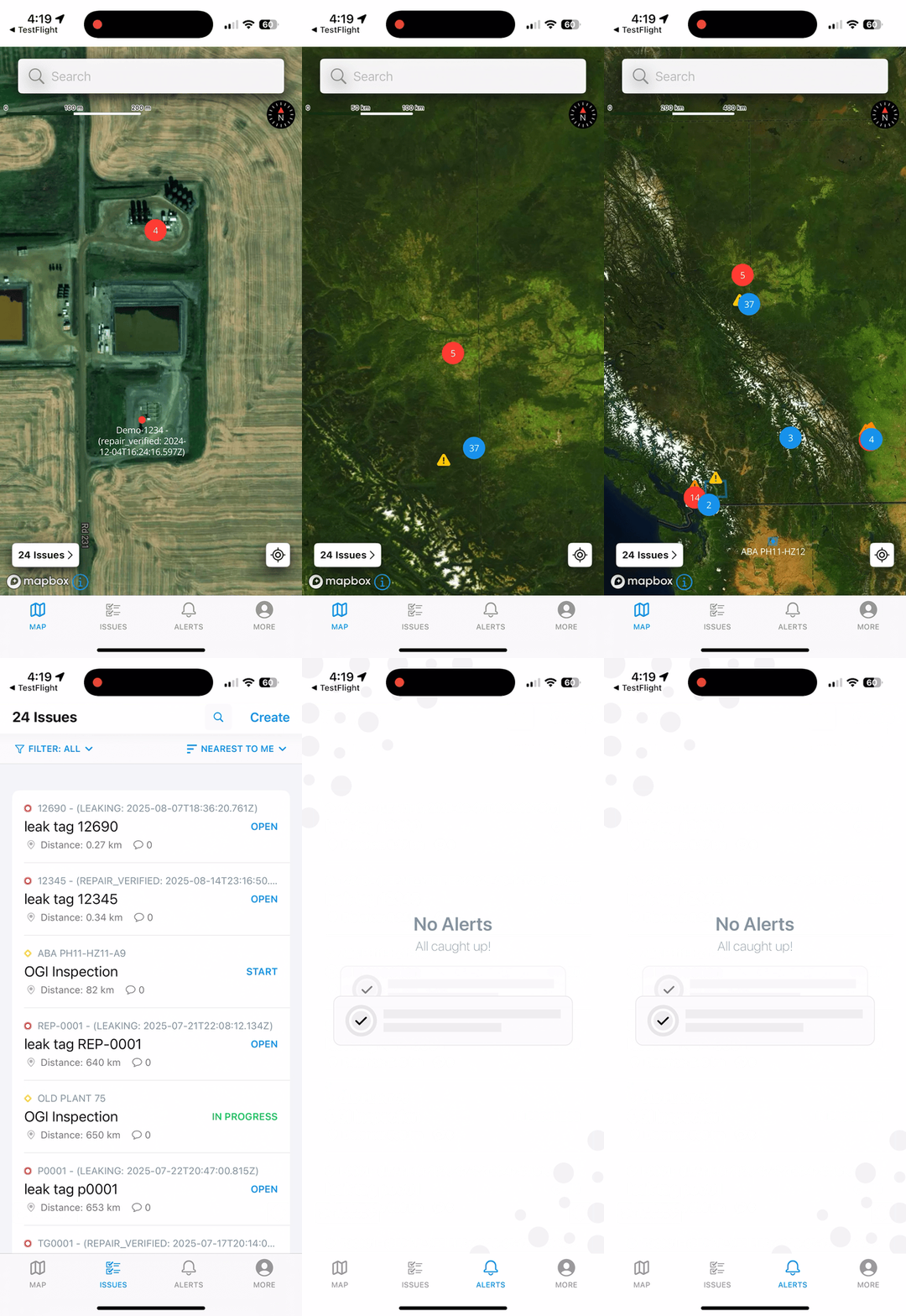
Outpost has four main tabs:
* **Maps:** View all leaks, vents, and site information plotted on a map. Tap on any item to view or take action. Use search to locate specific leaks or sites.
* **Issues:** Manage your assigned tickets. Sort by due date, proximity, or update time. Filter by status, site, or customer (if multi-tenancy is enabled). You can also **search or create new issues** directly.
* **Alerts:** Review notifications and app messages.
* **More:** Adjust settings and view app information.
## Welcome!
Welcome to **Outpost**, your mobile companion for LDAR inspections and field operations. Whether you're at a remote site or working in a connected environment, Outpost makes it easy to manage issues, perform inspections, collect data, and stay compliant. This guide will walk you through installing the app, exploring the core tabs, and completing your first inspection.
**Time Required:** 5–10 minutes\
**What You'll Learn:**
* How to navigate the Outpost mobile app
* How to complete an OGI Inspection with the required forms
* How to work offline and sync data later
**Common Pitfalls:**
* Skipping required forms (e.g. Site Check-In) before submitting results
* Not syncing data after working offline—wait for confirmation before exiting the app
## Your First Steps
Outpost is available on both [**iOS**](/use-sensorup/outpost-mobile/ios-install) and [**Android**](/use-sensorup/outpost-mobile/android-install) devices.
* Search for **SensorUp Outpost** in the App Store or Google Play
* Install the app and log in with your credentials
* Make sure to allow location access and camera permissions
Outpost has four main tabs:
* **Maps:** View all leaks, vents, and site information plotted on a map. Tap on any item to view or take action. Use search to locate specific leaks or sites.
* **Issues:** Manage your assigned tickets. Sort by due date, proximity, or update time. Filter by status, site, or customer (if multi-tenancy is enabled). You can also **search or create new issues** directly.
* **Alerts:** Review notifications and app messages.
* **More:** Adjust settings and view app information.
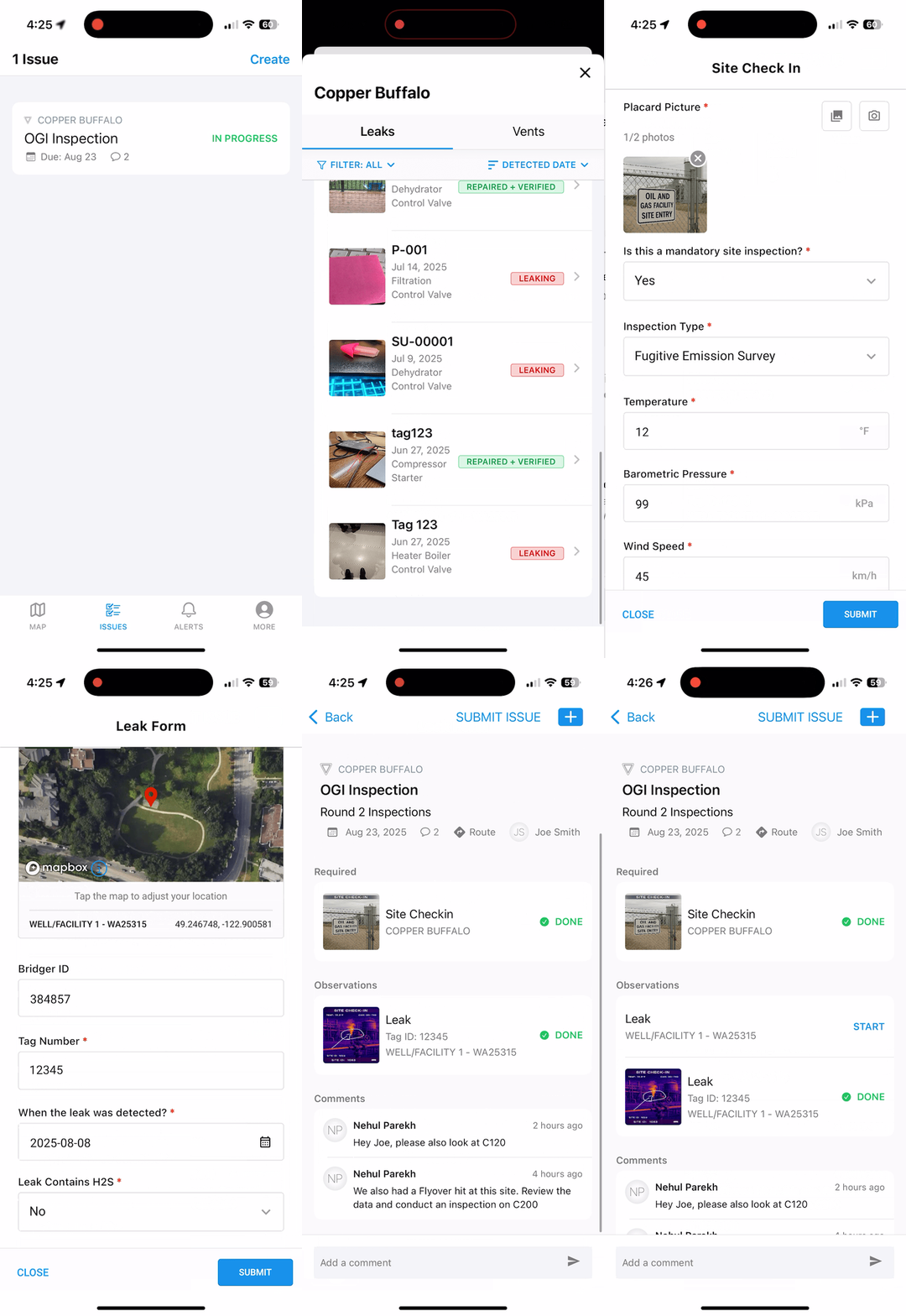
 Tap on any Issue in the **Issues** tab to open its details:
* **Site Summary Widget:** Shows all current and historical leaks and vents with their status (Leaking, Delayed Repair, Repaired, Vented).
* **Issue Info:** View description, due date, route link (opens Google/Apple Maps), and assignment details.
* **Forms:** Issues may have **Required** and **Optional** forms.
* Required forms (like Site Check-In) must be completed before optional results.
* Tap the **+ button** (iOS top-left or Android Results section) to add results (e.g. Leak, Repair, Re-Inspection, Vent).
* Select a **form**, then choose a **sub-location or Floc**.
Tap on any Issue in the **Issues** tab to open its details:
* **Site Summary Widget:** Shows all current and historical leaks and vents with their status (Leaking, Delayed Repair, Repaired, Vented).
* **Issue Info:** View description, due date, route link (opens Google/Apple Maps), and assignment details.
* **Forms:** Issues may have **Required** and **Optional** forms.
* Required forms (like Site Check-In) must be completed before optional results.
* Tap the **+ button** (iOS top-left or Android Results section) to add results (e.g. Leak, Repair, Re-Inspection, Vent).
* Select a **form**, then choose a **sub-location or Floc**.
 Complete and submit your forms:
* Add **photos**, use **annotation tools**, and validate tags to prevent duplicates
* Dynamic **prefill options** help reduce manual entry
* You can **Save & Close** to return later or **Submit** to finalize (this creates the leak or observation record)
When done with all tasks:
* Tap **Submit Issue** to close it
* Optionally, add a **comment** at the bottom of the issue for coordination
**You Did It!**\
✅ Logged into Outpost and explored the app\
✅ Completed a full Issue workflow with forms and results\
✅ Submitted your data and closed the Issue
## Offline Support
Outpost is fully **offline-ready**. If you're visiting a remote site with no connectivity:
* The app automatically switches to offline mode
* All data is saved locally
* Once you're back online, Outpost will **automatically sync** your data
* You'll see confirmation once syncing is complete
No need to worry—your work is always saved, even in the field.
## What's Next?
Now that you've completed your first field inspection using Outpost, you're ready to explore even more powerful features like form customization, tag scanning, and dynamic workflows.
Learn how to use pre-configured forms for different inspection types.
Learn how field techs can generate new tickets on the go.
Complete and submit your forms:
* Add **photos**, use **annotation tools**, and validate tags to prevent duplicates
* Dynamic **prefill options** help reduce manual entry
* You can **Save & Close** to return later or **Submit** to finalize (this creates the leak or observation record)
When done with all tasks:
* Tap **Submit Issue** to close it
* Optionally, add a **comment** at the bottom of the issue for coordination
**You Did It!**\
✅ Logged into Outpost and explored the app\
✅ Completed a full Issue workflow with forms and results\
✅ Submitted your data and closed the Issue
## Offline Support
Outpost is fully **offline-ready**. If you're visiting a remote site with no connectivity:
* The app automatically switches to offline mode
* All data is saved locally
* Once you're back online, Outpost will **automatically sync** your data
* You'll see confirmation once syncing is complete
No need to worry—your work is always saved, even in the field.
## What's Next?
Now that you've completed your first field inspection using Outpost, you're ready to explore even more powerful features like form customization, tag scanning, and dynamic workflows.
Learn how to use pre-configured forms for different inspection types.
Learn how field techs can generate new tickets on the go.